


Eraser: Remove unwanted object
4.072.00 Reviews
App Specs
- Version
- 1.4.1
- Updated On
- License
- Free
- Downloads
- 1,000,000+
- Developer
- Merryblue
- Categories
- Photography
- Platform
- Android
Screenshots
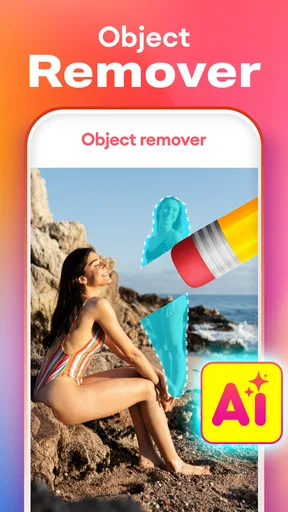
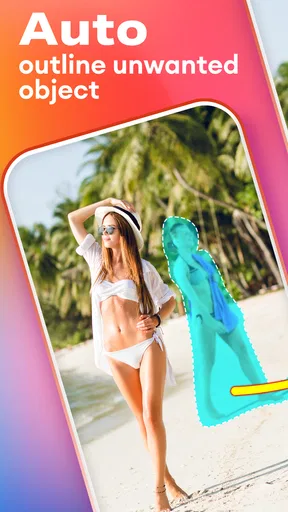
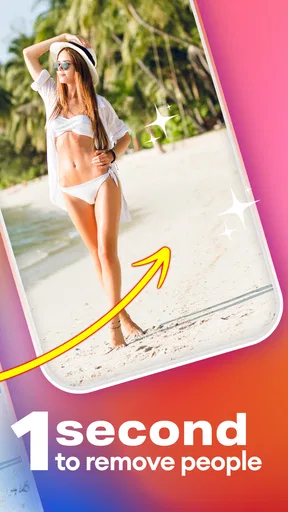
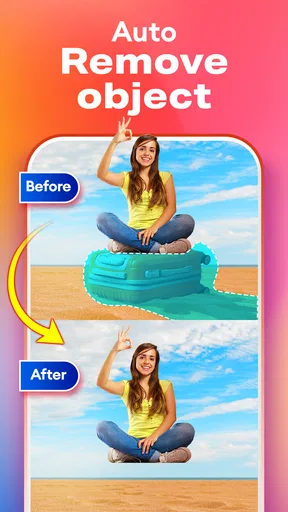
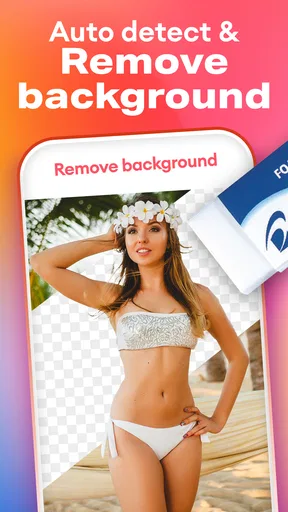
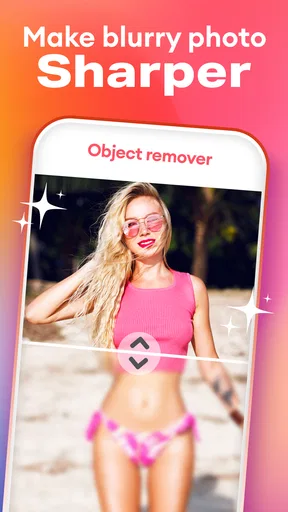
 Analysis by AppCompare
Ever taken a photo you love, then noticed a stranger, sign, or bin pulling your eye away from the subject? That’s the small, specific problem Eraser: Remove Unwanted Object is meant to solve. I like the idea of having a focused cleanup tool ready for those moments, rather than opening a full photo editor and digging through controls I may never use. It is a photography app from Merryblue, and its appeal is simple: mark an unwanted part of a picture and try to make the surrounding image look uninterrupted.
Where a quick cleanup can get tricky
Object removal sounds effortless, but the hardest part is often deciding exactly what to erase. A brush that spills over a person’s outline can remove useful detail too, while a selection that is too tight may leave a faint edge behind. I’d treat the first pass as a draft, especially when the unwanted object touches hair, clothing, or a patterned surface. Zooming in before brushing is a practical way to keep the selection controlled.
The background matters just as much as the object. Removing a small mark against a plain wall is a very different task from removing a person whose outline crosses water, leaves, or a busy crowd. In a complicated scene, the app has to fill an area using nearby visual information, and the result can look less convincing when there is no clear texture to continue. I find it useful to judge the edit at two sizes: close up for obvious smudges, then at normal viewing size to see whether the photo still reads naturally.
That distinction helps set expectations. This is a handy fix for distractions, not a guarantee that every difficult edit will look as if it was never touched. When the object overlaps the main subject or covers a large part of the frame, I would rather keep a slightly imperfect original than spend too long trying to force a clean result from a difficult patch.
Getting Started with Eraser: Remove Unwanted Object
First things first, downloading and setting up the app is a breeze. Available for both Android and iOS, it’s just a quick trip to your app store, and you’re ready to roll. Once installed, the interface is super intuitive, which I love because who has time to read through complicated manuals, right?
Interface and Usability
The design is straightforward—no unnecessary frills. You open a photo, select the unwanted object, and let the app handle the rest. The brush tool is your main weapon here. You just swipe over what you want to disappear, and boom, it’s gone. The app uses advanced AI to fill in the background seamlessly, and I was genuinely impressed with how natural the results looked.
Features That Stand Out
What really sets Eraser: Remove Unwanted Object apart is its versatility. Whether you’re dealing with street signs, people, or even pesky pimples, the app tackles them all. Here are some standout features that made me a fan:
Worth Reading Before You Choose

EA SPORTS FC Mobile 26 Is a Bigger Football Game, but It Takes Time

Flipboard Shows What News Apps Must Do Beyond the Feed

Switching to Android Auto Means Rethinking Your Driving Routine

Google Calendar Makes a Crowded Week Easier to Manage

Ludo King Makes the Most of the Minutes Between Plans

Baby Panda World Brings Quick Play to Modern Phones, but Its Game Library Feels Busy
- Precision Tool: The ability to zoom in for those tiny details ensures that nothing gets left behind.
- Clone Stamp: For those times when a simple erase won’t cut it, the clone stamp lets you copy other parts of the image to fill in gaps.
- Batch Processing: Got multiple photos with similar issues? No problem. The app can handle batch processing, saving you time and effort.
Choosing the right photo for the job
For a realistic everyday use, picture taking a quick café photo of a friend and later noticing a cup or bag on the edge of the table. If it covers a relatively plain patch, removing it is a sensible use of an eraser app: the subject stays the focus, and the edit does not need to reshape the whole scene. A thin wire against a simple sky can also be a reasonable target. By contrast, an object crossing a face or a distinctive architectural detail is a poor candidate for a quick fix because any replacement texture is likely to be noticed.
I’d also keep the original photo untouched and work on a copy when the image matters. That gives you a safe way to compare versions and return to the unedited shot if the fill looks artificial. For a picture you might print, use in a portfolio, or crop heavily later, preserving the source is especially worthwhile: a small cleanup that looks fine on a phone can become more obvious when enlarged.
One useful habit is to remove distractions in order of importance rather than brushing across everything at once. Start with the object that draws the eye most, inspect the result, then decide whether the smaller marks still matter. This reduces the chance of changing a large area unnecessarily, and it gives you a clearer sense of whether the photo is improving. Sometimes a crop is the cleaner solution; if the distraction sits right at the edge, trimming the frame may look more natural than repairing it.
Real-World Application
I took the app for a spin on a recent vacation, and it was a lifesaver. Imagine a crowded beach where everyone wants the same sunset shot. I used the app to erase people in the background, and suddenly, I had a serene beach all to myself—at least in the photo. Plus, it’s not just for scenic shots. Even those random, everyday photos can benefit from a little cleanup.
The app works offline, which is super handy when you’re on the go and might not have the best Wi-Fi connection. It’s lightweight, so it doesn’t hog your phone’s memory, and it doesn’t drain your battery like some other editing apps do. Trust me, I’ve tried them all.
How it fits beside other editing choices
Compared with a full-featured photo editor, a dedicated eraser is appealing when I want to fix one distraction without navigating a large set of adjustments. That focus can make a small task feel less involved. A general editor is still the better choice when the photo needs broader work—such as balancing light, changing color, or correcting several different problems in one session. For a distraction near the frame’s edge, cropping may be faster and more believable than object removal.
The clone stamp is a useful alternative when an automatic fill does not give the patch the look I want, but it also calls for more care. Copying nearby texture can create repeated patterns if the sampled area is distinctive, such as ripples or foliage. I’d use it for modest repairs and check the surrounding area for duplicated shapes, rather than assuming that a filled gap is invisible just because the unwanted object has disappeared.
This makes the app most suitable for casual photographers who often want to tidy a single image before sharing it, and for people who prefer a straightforward tool over a larger editing workflow. I would skip it as my main editor if I regularly needed extensive retouching or precise control over an entire image. In those cases, a broader editing app or a desktop program offers more room to work through complicated changes.
Pricing and Accessibility
While the app is free to download, there are some in-app purchases for advanced tools and features. Personally, I found the free version to be quite robust, but if you’re a pro user needing extra tools, the cost is reasonable. Plus, considering the time and effort it saves, it’s totally worth it.
The app is rated for Everyone, has a 4.0 average from around 4.8 thousand ratings, and has passed one million installs. It was released on May 6, 2024, and version 1.4.1 is the current version. It is listed for operating systems from version 9 onward. The app is free to install, with optional in-app purchases ranging from $4.99 to $28.99 per item, so I’d check which tools are available before paying rather than assuming every editing option is included at no cost.
Before deciding that an edit has failed, I’d check the basics: make sure I selected the image I meant to edit, that the unwanted area is marked carefully, and that I inspect the result after the fill finishes. If the output looks wrong, narrowing the selection or trying a smaller section can help distinguish a selection problem from a difficult background. If an image does not appear to save as expected, I’d avoid repeatedly editing the only copy and first check the app’s visible save controls and the phone’s photo library.
The developers are constantly updating the app, which means you’re always getting the latest tech and bug fixes. Customer support is responsive too. I had a minor issue with a saved photo once, and they got back to me quickly with a solution. It’s clear they care about user experience.
When the result looks wrong
Not every rough patch means the app itself is at fault. Sometimes the selected area includes too much of the background; sometimes the background contains detail that is difficult to reconstruct convincingly. I’d undo the edit, make a smaller selection, and compare again before trying to remove the same object in a different way. If the object is large or crosses several textures, I’d consider cropping, keeping the original, or using a more capable editor instead.
It also helps to separate a visual issue from a workflow issue. If the edit looks acceptable on screen but you cannot find the saved image, check the photo library and the app’s own save step before repeating the work. If the app does not respond as expected, closing and reopening it and checking that the image is still available are simple first steps. These checks do not guarantee a fix, but they can prevent losing track of a usable original or creating several confusing versions.
Final Thoughts
In a world where our social media presence is almost as important as our real-world one, having an app like Eraser: Remove Unwanted Object at your fingertips is a game-changer. It’s not just about vanity; it’s about capturing moments as you remember them, without distractions.
If you’re someone who loves photography or just wants their photos to look a tad more professional, give this app a try. It’s user-friendly, effective, and most importantly, it delivers on its promise. So next time you’re frustrated by that unwanted object in your shot, remember there’s an app for that!
My practical verdict is that this is worth trying when a photo is already good and one small distraction is holding it back. Keep the source image, make careful selections, and judge the repair at normal viewing size. If you want broad creative controls or need to rebuild a complex section of a picture, choose a more complete editor; for quick, focused cleanup, this app has a clear and useful role.
Pros
- Easy to use with intuitive interface.
- Quickly removes unwanted objects.
- Supports high-resolution images.
- Offers zoom for precise editing.
- No watermark on saved images.
Cons
- Occasional app crashes.
- Limited free features.
- Ads can be intrusive.
- Requires internet for some tools.
- No batch processing available.
FAQs for Eraser: Remove unwanted object
What is Eraser: Remove unwanted object used for?
Eraser: Remove unwanted object is a user-friendly app designed to remove unwanted elements from photos. Whether it's a passerby in the background or an unsightly blemish, this app allows users to seamlessly edit their images to perfection. It's ideal for enhancing personal photos and professional photography alike.
Is Eraser: Remove unwanted object easy to use for beginners?
Yes, the app is designed with an intuitive interface that makes it accessible for users of all skill levels. Beginners will find the step-by-step instructions helpful, while advanced users can take advantage of more detailed editing tools to refine their images further. The simplicity of the app ensures a smooth editing experience.
Does Eraser: Remove unwanted object support high-resolution images?
Absolutely, the app supports high-resolution images, allowing users to edit without compromising quality. Whether you’re working with photos taken on a smartphone or a professional camera, you can expect the edited images to maintain their original clarity and detail, making it perfect for both casual and professional use.
Are there any in-app purchases or ads in Eraser: Remove unwanted object?
While Eraser: Remove unwanted object offers a free version with basic features, it includes some in-app purchases to unlock advanced tools. Additionally, users may encounter ads in the free version. For an ad-free experience and access to premium features, users can opt for the paid version of the app.
Can I restore the original image after editing in Eraser?
Yes, the app allows users to save a copy of the original image before making any edits. This feature ensures that you can always revert to the original if needed. It's a handy feature for users who want to experiment with different edits without worrying about losing the original quality.


